Learn WordPress: An Essential Guide For Complete Beginners
Learn WordPress from scratch: pick a domain and host, install it, then use themes, plugins, and menus to launch a beginner site.
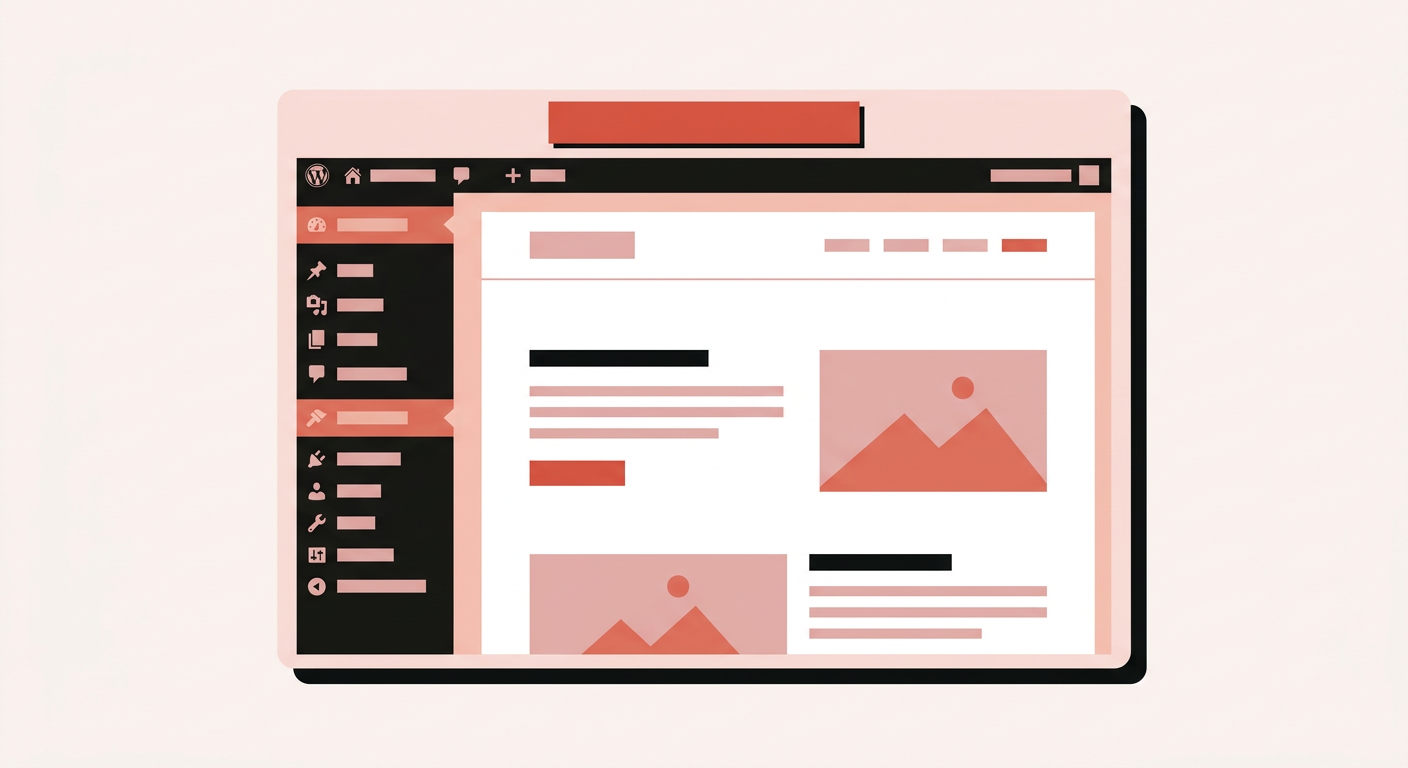
If you want to learn WordPress as a complete beginner, you do not need to memorize how the web works first. I will walk you through a domain, hosting, a one-click install, then the dashboard pieces that matter: themes, plugins, pages, menus, and a basic launch checklist. By the end you should have a public site you can edit at /wp-admin.
I have built client WordPress sites for years. This is the path I still send friends when they want a brochure site or a blog without writing HTML by hand.
What WordPress is (and what you can build)
WordPress is a content management system (CMS). You install it on a host, log into the admin, and publish pages and posts from a browser. It started as blogging software. Today it also runs small business sites, portfolios, and stores.
Types of sites people build with it:
- Blog — posts, categories, and an RSS feed out of the box.
- Small business site — Home, About, Services, Contact. Use the block editor or a page-builder plugin if you want drag-and-drop layouts.
- Portfolio — projects with images and short write-ups. Plenty of free portfolio themes exist.
- eCommerce — WooCommerce (and other store plugins) add products, carts, and payments.
You are not limited to those four. For a custom theme or a more complicated build, you can hire a WordPress developer (like me).
Why beginners still pick it:
- Cheap to start — shared hosts often advertise intro plans around a few dollars a month (watch the renewal price). A common
.comis often roughly $10–15 for the first year; renewals are usually higher. - Customizable — thousands of themes and plugins, plus room to add your own CSS or PHP when you outgrow the defaults.
- Familiar admin — once you learn Posts, Pages, Appearance, and Plugins, the same UI shows up on most sites. Roughly 41% of all websites run WordPress (W3Techs, August 2026). Most of my clients still ask for it first.
- Community — when something breaks, a search usually turns up a forum thread or docs page that matches your error.
Domain, hosting, and how they connect
Before you install anything, decide what the site is for, pick a domain that fits the brand, and choose a host. Sketch the pages you need so you are not inventing structure after launch.
If that paragraph sounds abstract, ignore the jargon for a moment. You need two purchases: a name people type, and a computer that stores the files.
Domain name
- Your site files live on a server (your PC or, more often, a hosting company).
- Servers have IP addresses that look like
105.16.24.35. - People will not memorize that. A domain (for example
valiantweb.co) maps to the IP so the browser can find you.
Registrars like GoDaddy or Namecheap sell domains. Budget roughly $10–15 a year for a typical first-year .com; popular names and renewals cost more.
Servers and web hosting
A domain alone does nothing. Hosting is where the WordPress files live. You can host from a home PC, but managed hosting is easier: companies like Bluehost or HostGator sell starter plans in the low single-digit dollars per month on promo terms, with one-click WordPress installers.
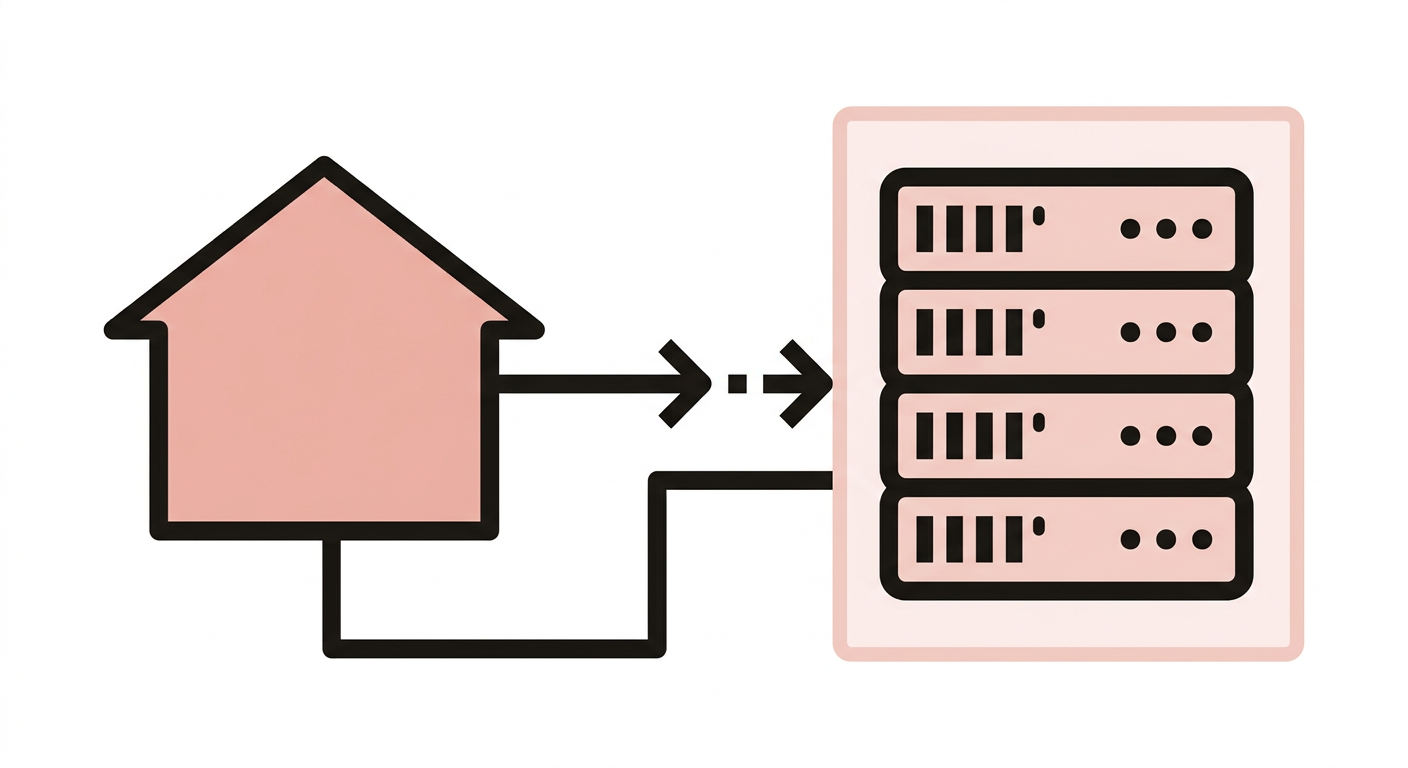
How it is all connected
If you bought the domain and hosting separately, map the domain to the server. On most starter plans that means setting the domain’s name servers at the registrar to the values your host gives you.
Then wait for DNS to catch up. Changing name servers can take up to about 24–48 hours worldwide; many other DNS edits land much faster. Namecheap describes this wait as domain name (DNS) propagation: ISP caches updating with your new DNS info.
After propagation finishes, install WordPress on the host.
Install WordPress
Most hosts give you a one-click installer. You pick an admin username or email, an email address, and a password. That account is how you reach the dashboard. Some installers also let you pick a starter theme; you can change it later.
When it finishes, you have a working WordPress site. Next you add pages, a theme, plugins, and menus — or you jump straight into a first blog post.
How to log in to WordPress admin?
Append /wp-admin to your site URL, like example.com/wp-admin. That opens the login screen.
WordPress themes and plugins (plus pages and menus)
Here is what I usually do right after install:
- Learn the dashboard — left-hand menu covers content, appearance, plugins, and settings. Click around until Posts vs Pages and Appearance vs Plugins stop feeling mysterious.
- Pick and customize a theme — the theme sets layout, colors, fonts, and templates. Choose one that fits the content, then adjust Customizer / Site Editor options.
- Add a few plugins — plugins add features the theme does not include. Common starter picks: Yoast SEO for on-page SEO fields, Wordfence for security scanning, WP Super Cache for page caching.
- Create pages — at least Home, About, and Contact, with real copy and images.
- Set menus and widgets — menus are the links in the header or footer. Widgets (or block-based widget areas) fill sidebars and footer columns.
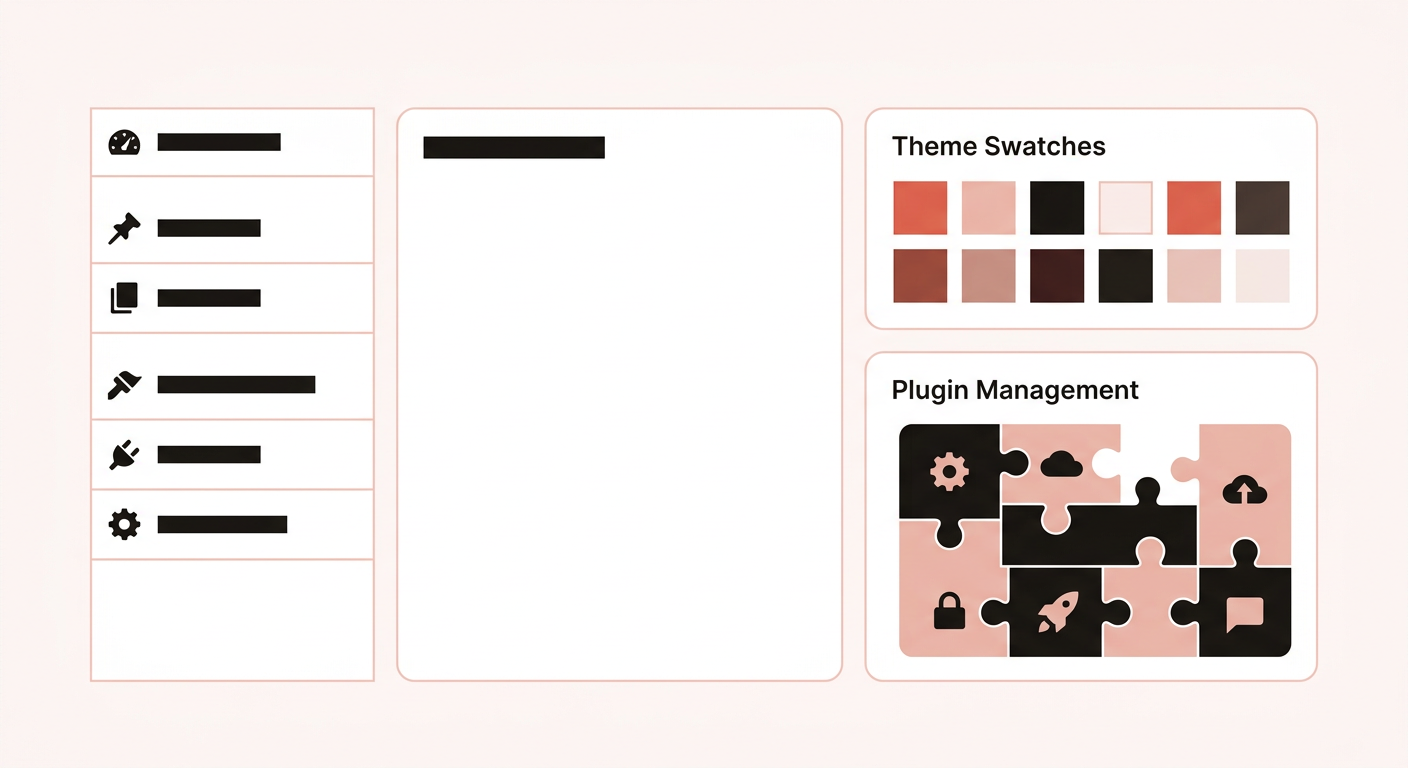
Common WordPress terms
| Term | What it is |
|---|---|
| WordPress Theme | The exterior design and layout. Colors, fonts, header, and page templates. Swap the theme and the site can look different while the content stays. |
| WordPress Plugin | An add-on feature: contact form, gallery, SEO fields, store, cache. Install what you need instead of coding each feature from scratch. |
| WordPress Widget | A small module for sidebars, footers, or other widget areas. Search boxes, recent posts, and custom HTML often live here (block themes use blocks in the same spots). |
| WordPress Menu | The navigational list of links to pages, categories, or external URLs. Themes expose menu locations in the header, footer, or sidebar. |
Testing and launching your website
Before you call it live, click through the site on a phone and a desktop browser. Fix broken links and empty pages.
Some one-click installers add an “Under Maintenance” plugin so logged-out visitors see a holding page while you build. If you do not see one, the site may already be public — unless the host checked Search engine visibility.
Find that setting here:
Dashboard → Settings → Reading → Search engine visibilityChecking “Discourage search engines from indexing this site” asks Google and others not to list you. It is not a security lock. Uncheck it when you want the site indexed. Official docs: Settings → Reading.
Promoting and maintaining your website
After launch, share the URL where your audience already is. Keep writing or updating pages so the site does not go stale. Update WordPress core, themes, and plugins on a schedule. PHP versions are usually controlled in the host panel — keep that current too.
How I keep a new site secure:
- Update themes, plugins, WordPress, and PHP when updates are available.
- Install themes and plugins from the WordPress.org directories or known vendors — not random “nulled theme” sites.
- If you use a custom theme, make sure someone maintains it.
- Prefer a host you trust. For client work I lean toward managed WordPress hosts like Kinsta or WP Engine once the budget allows.
Skipping updates is the usual way a “secure” site still gets hacked.
Troubleshooting common issues
If the site breaks and you have not been editing custom code, deactivate plugins one at a time. An outdated plugin is a common culprit. Theme conflicts show up the same way: switch to a default theme briefly and see if the problem disappears.
If all else fails, contact me or email info@valiantweb.co.
Conclusion
You now have the beginner path: domain + hosting, install WordPress, theme and plugins, pages and menus, then a launch and update habit. Keep refining the content; the software part is mostly maintenance after that.
When you outgrow a pre-built theme, read How to Make a Custom WordPress Theme. If you are still choosing tools, how to choose a web stack covers when WordPress is the right call. More build guides live in the build hub.
Frequently asked questions
What is WordPress?
WordPress is a content management system. You install it on a host, then add pages, posts, a theme, and plugins from a browser admin. It started as blogging software and now runs brochure sites, portfolios, and stores. You do not write HTML files by hand for every page. You log in at /wp-admin and edit there.
Do I need a domain and hosting before I install WordPress?
Yes, if you want a public site. A domain is the name people type, like valiantweb.co. Hosting is the computer that stores the files. Buy them together from one company if you are new, so you skip DNS setup. After the name servers propagate, use the host's one-click installer.
What is the difference between a WordPress theme and a plugin?
A theme is the look and layout: colors, fonts, header, page templates. A plugin adds a feature: a contact form, SEO fields, a cache, a store. Change the theme and the site can look different while the content stays. Install a plugin when you need a job the theme does not do.
How do I keep a new WordPress site secure?
Update WordPress, the theme, and plugins. Skip themes and plugins from random download sites. Use a host you trust, especially if it is a client site. Search engine visibility in Settings → Reading only hides you from Google; it is not security. Turn off maintenance plugins when you launch.

Keep reading
How to Choose a Web Stack for a Client Project
How to choose a web stack for a client project. Match WordPress, Laravel, or Astro to the job, then pick hosting and tools that fit.
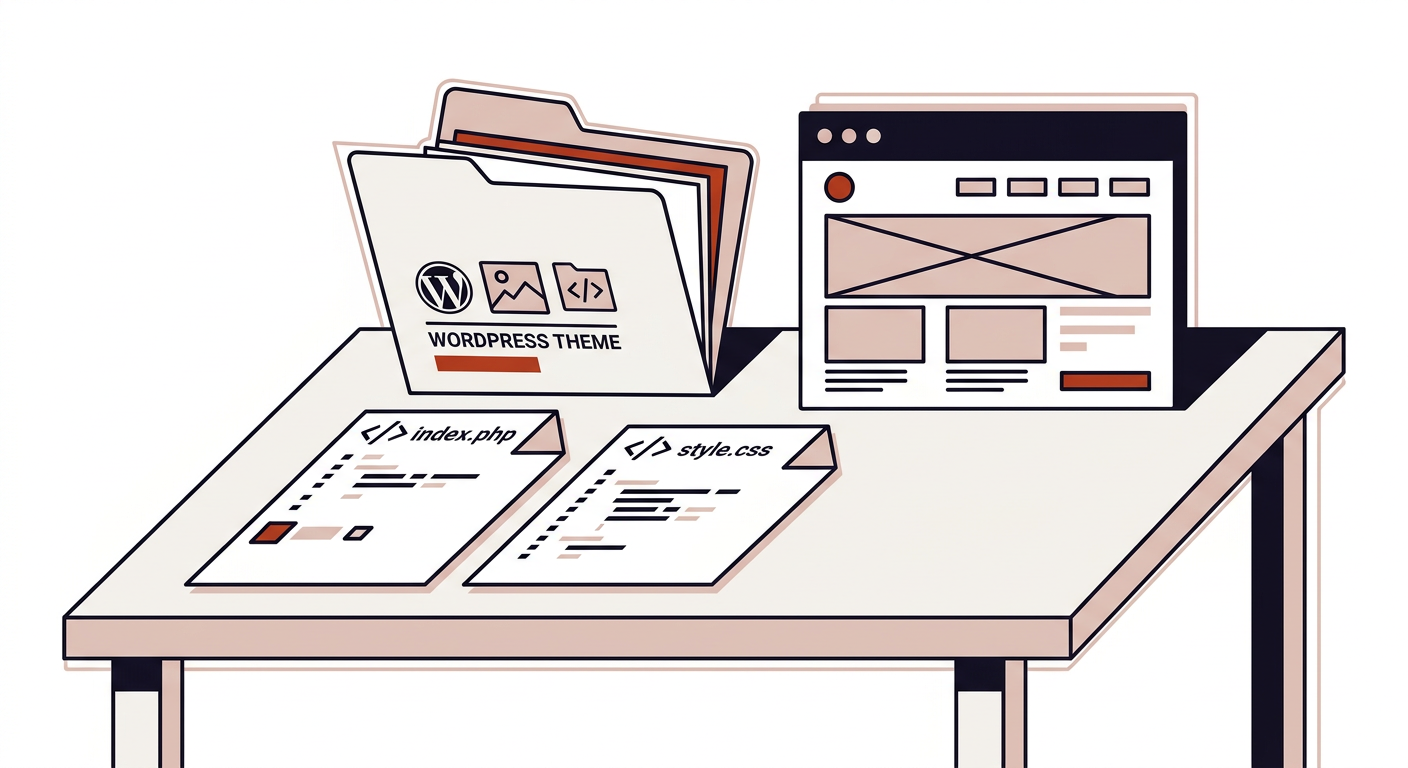
How to Make a Custom WordPress Theme: Theme Files Essentials
How to make a custom WordPress theme: the files you need, template hierarchy, the Loop, and how starter themes like Underscores fit.
Comments